How to Manage Dead Stock with a No-Code Inventory App and Google Sheets
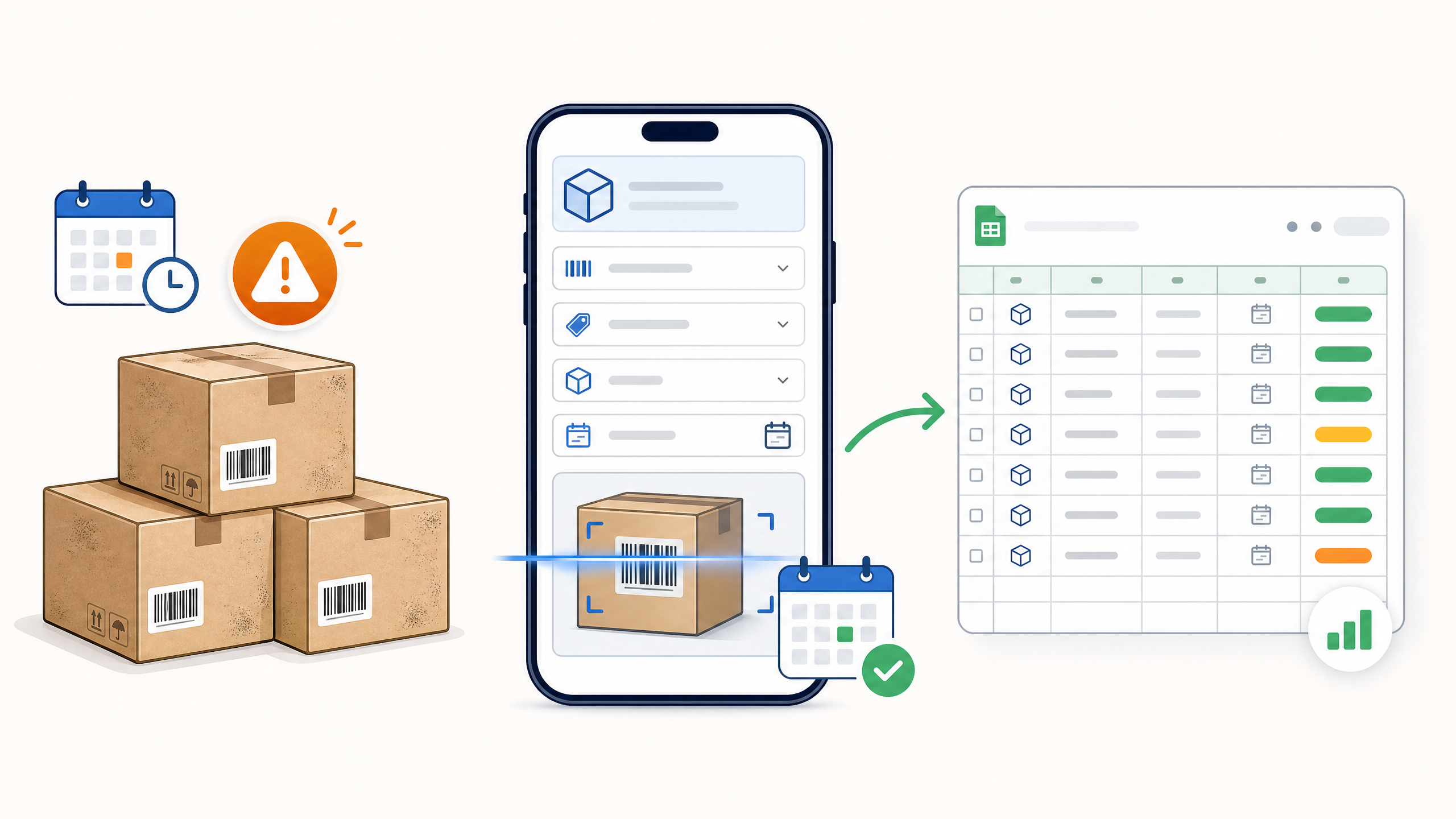
Dead stock can quietly consume warehouse space, tie up working capital, and make inventory harder to manage.
The challenge is often not recognizing that dead stock exists. It is having a simple system that tells you which products have stopped moving and which products need attention before they become dead stock.
With GearChain, you can build a customized no-code inventory tracking system around the information that matters to your business. Instead of adapting your operation to complicated inventory software, you can create custom fields using a simple, Google Forms-like interface.
For dead stock management, that can be as straightforward as adding a Last Sold Date, creating expiry alerts, scanning inventory as it moves, and syncing the data with Google Sheets.
Here is how to set it up.
What Is Dead Stock?
Dead stock is inventory that has remained unsold for an extended period and is unlikely to sell without additional action.
Dead stock can include:
Slow-moving retail products
Seasonal merchandise left after the season
Products approaching expiration
Discontinued items
Excess inventory
Spare parts with little or no recent demand
The longer these products remain unnoticed, the more storage space and capital they consume.
One practical way to identify them is to track when each inventory item was last sold or moved.
Step 1: Create a Custom Inventory Form
GearChain's no-code inventory app builder lets you design the inventory workflow around your own operation.
You don't need complex coding or development work. You select the fields you want, configure them, and create the inventory form that works for your business.
On Web and Mobile
Go to:
Settings > Form Settings > Create a New Form
Enter a name for your inventory form, such as:
Retail Inventory
Warehouse Inventory
Parts Inventory
Store Inventory
Slow-Moving Inventory Tracker
Then select the fields you want to include.
GearChain provides different field types so you can determine exactly what information should be collected for each SKU or physical asset.

GearChain no-code inventory app builder with customizable inventory form fields
Step 2: Add a "Last Sold Date" Field
One of the simplest ways to find potential dead stock is to know when an item was last sold.
When creating your form, select a Date field and rename it:
Last Sold Date
Every inventory record can now contain a date indicating the most recent sale or movement of that product.
For example:
A product that has not sold for several months deserves significantly more attention than a product sold yesterday.
Your definition of dead stock can depend on your business. You might investigate items with no sales for:
30 days, 60 days, 90 days, 180 days, or another period appropriate for your inventory cycle.

Custom Last Sold Date field for dead stock inventory tracking in GearChain
Step 3: Track Expiry Dates for Time-Sensitive Inventory
For inventory with an expiration or sell-by date, waiting until a product becomes dead stock may already be too late.
Instead, create another Date field and give it a name such as:
Expiry Date
Sell By Date
Expiry Risk Alert
Best Before Date
This creates a second way of managing dead stock: identifying inventory at risk before it expires.

Adding an Expiry Risk Alert date field to a no-code inventory form
Step 4: Create Alerts Before Inventory Expires
You can also configure email alerts for a Date field.
For example, an Expiry Risk Alert could notify the administrator:
60 days before expiration
30 days before expiration
15 days before expiration
10 days before expiration
This creates an early-warning system instead of requiring someone to manually review hundreds or thousands of inventory records.
A retailer receiving a 60-day warning could decide to promote the product. At 30 days, they might discount it further. At 15 or 10 days, they can take additional action based on their inventory policy.
The goal is simple:
Act before slow-moving inventory becomes unsellable inventory.

Inventory expiry alerts configured for 60 30 15 and 10 days before expiration
Step 5: Import Your Existing Inventory Data
You do not necessarily need to start from scratch.
If you already maintain inventory in a spreadsheet, you can import the existing data through:
Import/Export
Your spreadsheet might already contain:
Barcode
SKU
Product name
Current stock
Last sold date (or blank)
Unit price
Importing these records allows you to move from spreadsheet-based inventory toward a barcode-enabled inventory workflow while continuing to use your existing data.
Step 6: Update Inventory with Barcode Scanning
Once the inventory is loaded, staff can update products through manual entry or barcode scanning.
GearChain can be used with barcode scanning workflows, including its mobile app, so employees can locate the correct inventory item quickly and update information such as its Last Sold Date.
This is especially useful when inventory activity happens on the warehouse or retail floor rather than at a desk.
Instead of waiting for someone to update a spreadsheet later:
Scan the item → update the record → keep the inventory information current.
Step 7: Sort Inventory by Last Sold Date
Once Last Sold Date is part of your inventory records, you have a simple method for finding potentially inactive products.
From your inventory list, review or sort products based on Last Sold Date.
Older dates immediately become candidates for investigation.
You can then ask questions such as:
Which products have not sold in 90 days?
Which products have high stock but low recent movement?
Which SKUs should be discounted?
Which items should not be reordered?
Which inventory should be bundled with faster-selling products?
This turns an ordinary date field into a practical dead stock management tool.

Inventory list displaying Last Sold Date for identifying slow-moving and dead stock
Step 8: Sync Your Inventory with Google Sheets
You can also keep inventory synchronized with Google Sheets.
On the Web
Go to:
Import/Export > Export > Google Sheets
On Mobile
Go to:
Google Sheet Sync > Export
After the inventory is exported and synchronized, updates made through manual entry or barcode scanning can be reflected in the spreadsheet.
This gives you a useful combination:
Mobile inventory management for day-to-day operations + Google Sheets for a bird's-eye view of your inventory data.

GearChain inventory data synced with Google Sheets showing Last Sold Date and stock levels
Step 9: Analyze Dead Stock in Google Sheets
Once your inventory is available in Google Sheets, you can extend the workflow further.
For example, you can:
Sort by Last Sold Date to put the oldest inventory first.
Filter inventory by date to find products that have not sold during a specific period.
Use formulas to calculate the number of days since an item's last sale.
Apply conditional formatting to highlight inventory that exceeds your dead-stock threshold.
Use Apps Script to build additional business-specific automations.
Use AI analysis to explore your inventory data and identify trends, slow-moving products, possible overstock, or other areas requiring attention.
This means your inventory system does not have to be limited to a rigid, predefined workflow.
You can start with a simple Last Sold Date field and build additional automation as your inventory management needs grow.
A Simpler Dead Stock Management Workflow
A practical dead stock workflow can therefore look like this:
Create your custom inventory form → Add Last Sold Date (or expiry alerts when necessary) → Import existing inventory → Scan and update products → Sort slow-moving items → Sync with Google Sheets → Analyze and take action.
There is no need to build complex inventory software from scratch.
GearChain's no-code approach lets you configure inventory tracking around the way your business already operates while combining custom fields, barcode scanning, alerts, mobile inventory management, and Google Sheets synchronization.
The result is a much clearer view of which inventory is moving, which inventory is at risk, and where action may be required.
Frequently Asked Questions About Dead Stock
How do you identify dead stock?
One practical method is to track the Last Sold Date for every SKU. Products that have not sold within your company's defined period - such as 60, 90, or 180 days - can then be reviewed as potential dead stock.
How can you prevent inventory from becoming dead stock?
Track product movement continuously and create alerts for inventory that requires action. For perishable or date-sensitive products, expiry alerts can provide warnings well before the final sell-by date.
Can Google Sheets be used for dead stock management?
Yes. Inventory data can be organized by Last Sold Date, stock quantity, expiry date, and other fields. You can then use sorting, filters, formulas, conditional formatting, scripts, or AI tools to analyze slow-moving inventory.
Can barcode scanning help manage dead stock?
Yes. Barcode scanning makes it easier to locate the correct inventory record and keep item information current as products move through the business. More accurate activity data makes dead stock analysis more useful.
Do I need to build custom inventory software?
Not necessarily. A no-code inventory app builder such as GearChain allows you to configure custom fields and workflows without developing an inventory application from scratch.

Enter email to get Free Google Sheets Template
We’ll email you a quick verification link. Click it to confirm your address and your template will open automatically.
Enter email to get Free Excel Template
We’ll email you a quick verification link. Click it to confirm your address and your template will open automatically.