.png)
Inventory data is much more useful when you can quickly understand what it is telling you.
With the latest GearGPT upgrade in GearChain, you can ask questions about your inventory and receive answers through text, tables, charts, graphs, and visual trends.
Instead of manually filtering spreadsheets, writing formulas, building pivot tables, or creating reports, you can simply ask questions such as:
Which products are tying up the most inventory value?
What is my total inventory value?
Which product is the most expensive?
Which product has the highest stock?
Which products are low in stock?
What are the top 5 most popular items by transactions?
Show me total stock trend over the past 30 days.
Give me total stock today versus last week.
Show inventory movement over the past 14 days.
How has total stock changed over 90 days?
GearGPT analyzes the inventory data you already manage in GearChain and presents the answer in a format that makes the information easier to understand and act on.
And because GearGPT supports multiple languages, your team can ask inventory questions in the language they are most comfortable using.
Turn the Inventory Data You Already Have Into AI Insights
To use GearGPT for inventory analysis, you first need inventory data inside GearChain.
If you already manage inventory using Excel, CSV, or Google Sheets, you do not need to start from scratch. You can import your existing inventory master data into GearChain and continue working from there.
As your team uses GearChain to scan barcodes, adjust stock, transfer inventory, update records, and perform other inventory activities, GearChain continues building an activity history.
That historical data becomes especially useful when you want to understand how inventory is changing over time.
For example, your current inventory might tell you:
“We have 500 units today.”
But your inventory history can help answer a more useful question:
“How has our total stock changed over the past 90 days?”
That is the difference between simply storing inventory data and using your data to understand what is happening across your operation.
How to Use GearGPT for Inventory Analysis
Step 1: Create a Custom Inventory Form
Start by creating an inventory form that matches your business.
GearChain is a no-code inventory app builder.
No code. No vibe coding.
Simply add the fields your business actually needs.
For example:
Product or asset name
Barcode
SKU
Stock
Price
Category
Location
Supplier
Status
Expiration date
Other custom business fields
If you want GearGPT to answer inventory-value questions, for example, your form should include relevant fields such as Stock and Price.
Whenever possible, each item should also have a barcode number.
That allows employees to scan an item and quickly find, record, or update inventory without manually searching through a long product list.
Already Have Inventory in Excel or Google Sheets?
You can import your existing inventory master data into GearChain instead of manually entering every item.
This allows you to start with the data your business already has.
Step 2: Keep Recording Inventory Activity
Once your inventory is in GearChain, continue using it as part of your normal workflow.
Employees can scan products, adjust quantities, transfer inventory, and update product information as inventory moves through your operation.
GearChain records these activities.
Over time, that activity history gives GearGPT additional information for answering questions such as:
Which products have the highest inventory value?
Which items have the highest or lowest stock?
Which products have the most activity?
How has stock changed over time?
Which inventory is moving the most?
Which items may deserve more attention?
The more consistently inventory activity is recorded, the more historical information becomes available for trend analysis.
Step 3: Open GearGPT
Using GearGPT takes only a few clicks.
On the GearChain Web App
Go to the Dashboard or Assets page.
Click the GearGPT bot icon in the lower-right corner.
The GearGPT panel will open.
Choose the inventory form you want to analyze, type your question, and submit it.
On the GearChain Mobile App
From the main screen, tap the GearGPT tile.
Inside GearGPT:
Select the inventory form you want to analyze.
Ask your inventory question.
Review the answer.
That's it.
You do not need to build a report, create a pivot table, or configure a dashboard before asking your question.
Inventory AI Use Cases: See GearGPT in Action
GearGPT can analyze both your current inventory data and the historical activity created as your team continues using GearChain.
Different questions also require different types of answers.
Sometimes text is enough.
Sometimes a table makes the data easier to compare.
And sometimes a chart or graph makes a trend immediately visible.
Here are a few examples.
Use Case 1: Find Products Tying Up the Most Inventory Value
Ask GearGPT:
“Which products are tying up the most inventory value?”
If your inventory form contains fields such as Stock and Price, GearGPT can calculate inventory value and identify which products represent the largest amount of inventory investment.
Instead of calculating this manually for every product:
Stock × Unit Price = Inventory Value
and then sorting the results in a spreadsheet, you can ask GearGPT directly.
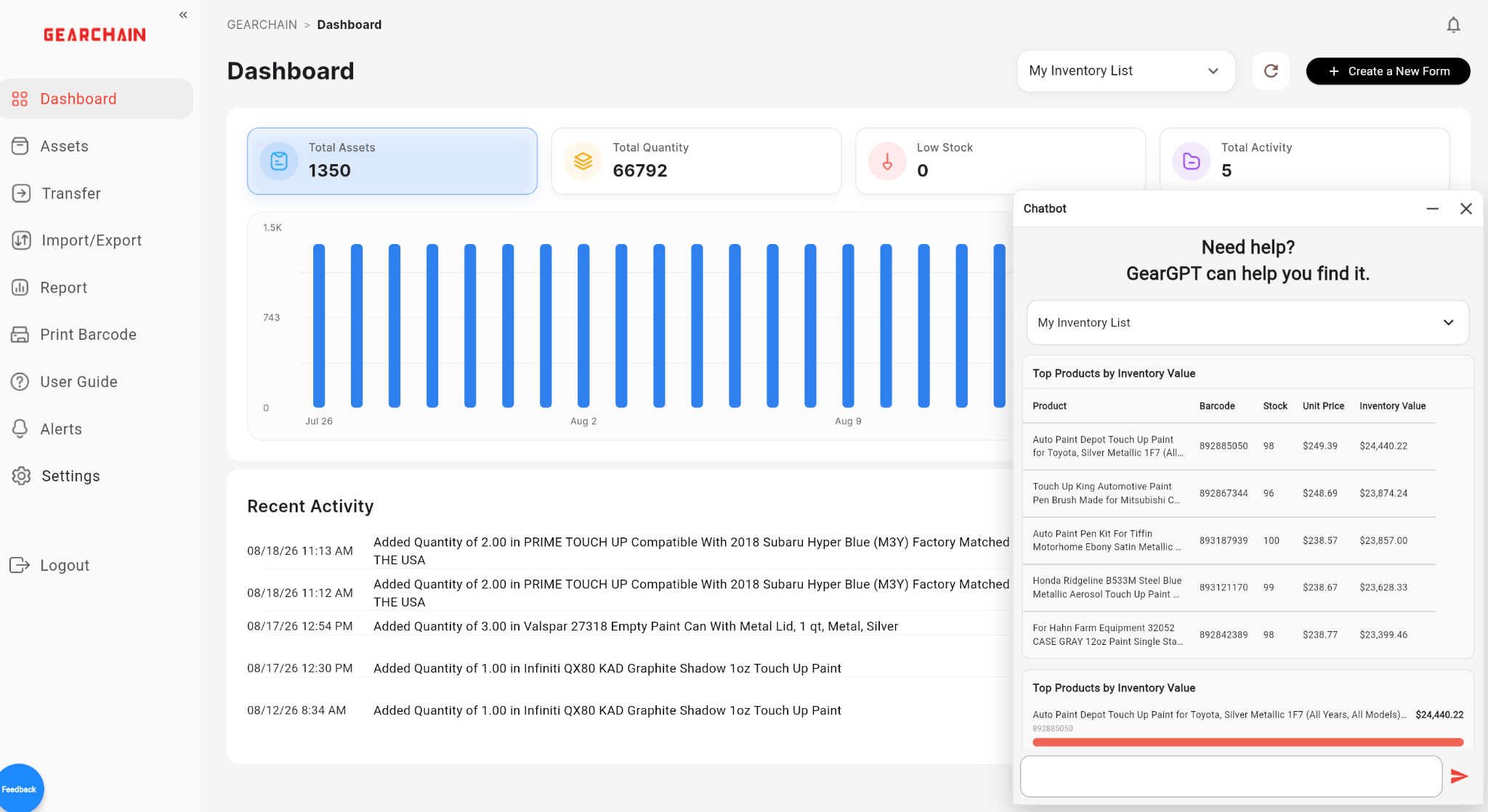
GearGPT shows the top products by inventory value with a detailed table and visual comparison.
The answer can include information such as:
Product
Barcode
Stock
Unit price
Inventory value
This gives you an immediate view of where your inventory investment is concentrated.
Why This Matters
Understanding where inventory value is tied up can help you identify:
Products holding significant working capital
High-value inventory requiring closer attention
Possible overstock
Inventory occupying valuable warehouse space
Products worth reviewing before the next purchase order
You can also ask:
“What is my total inventory value?”
“Which product is the most expensive?”
“Show me the top 10 products by inventory value.”
“Which products represent the most inventory investment?”
Use Case 2: See Your Total Stock Trend Over the Past 30 Days
Knowing today's stock quantity is useful.
But sometimes the more important question is:
What has been happening to my inventory?
Ask GearGPT:
“Show me the total stock trend over the past 30 days.”
GearGPT can analyze historical inventory activity and display the results as a visual trend.
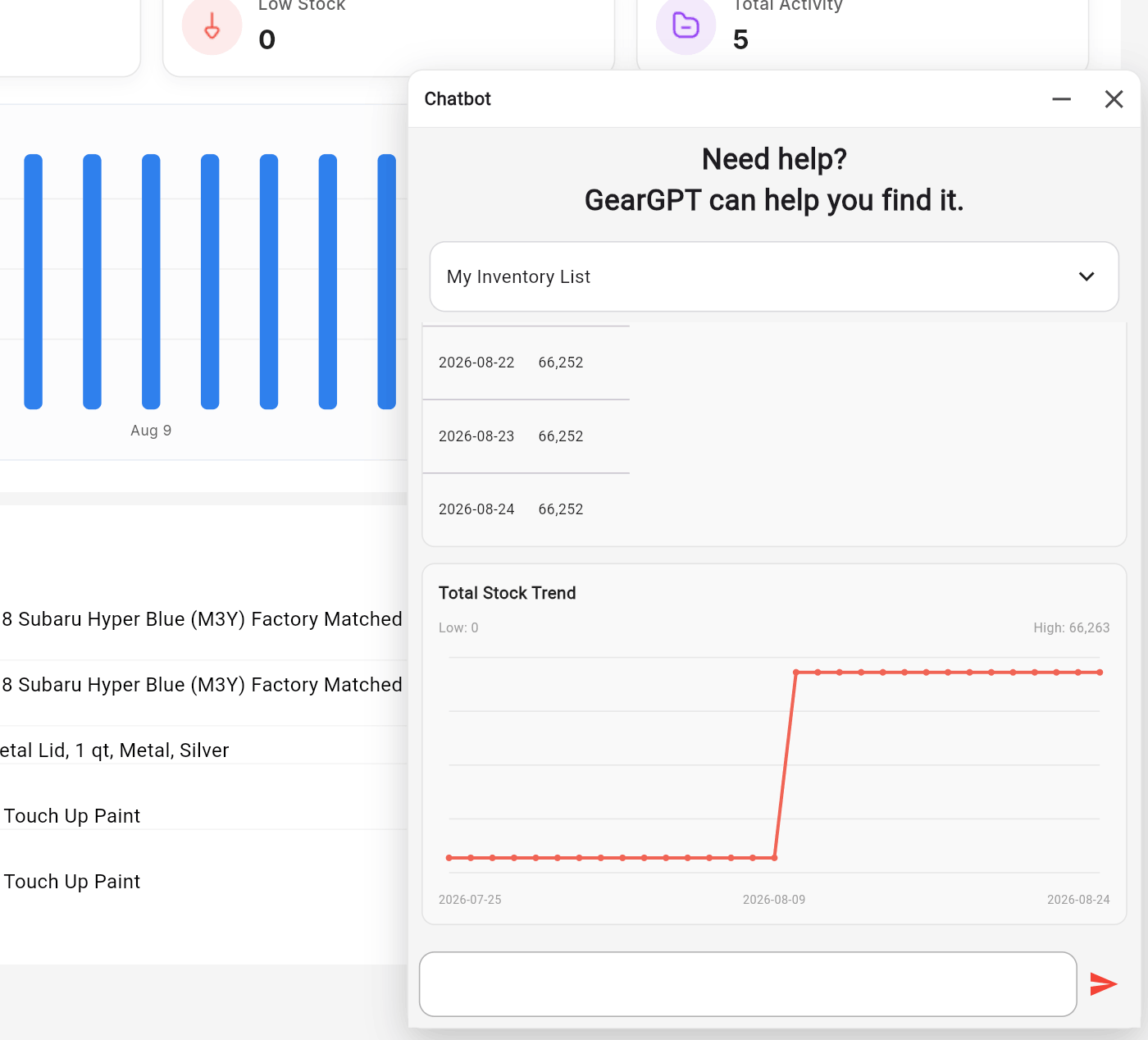
GearGPT visualizes total stock over the previous 30 days so changes are easier to identify.
Instead of reviewing transaction records one by one, you can see the overall direction of your inventory.
A graph can make it easier to spot:
Sudden stock increases
Large stock decreases
Stable inventory periods
Unusual inventory changes
Longer-term patterns
You can also ask:
“How has the total stock changed over 90 days?”
“Give me total stock today versus last week.”
“Show inventory movement over the past 14 days.”
“How has usage changed over the past 90 days?”
This can be useful for purchasing, warehouse planning, inventory reviews, and other operational decisions.
Use Case 3: Find Your Most Active Products
Stock quantity does not always tell you which products are the most active.
GearGPT can also analyze transaction activity.
Ask:
“What are the top 5 most popular items by transactions?”
GearGPT can review recorded inventory activity and rank products based on transaction volume.
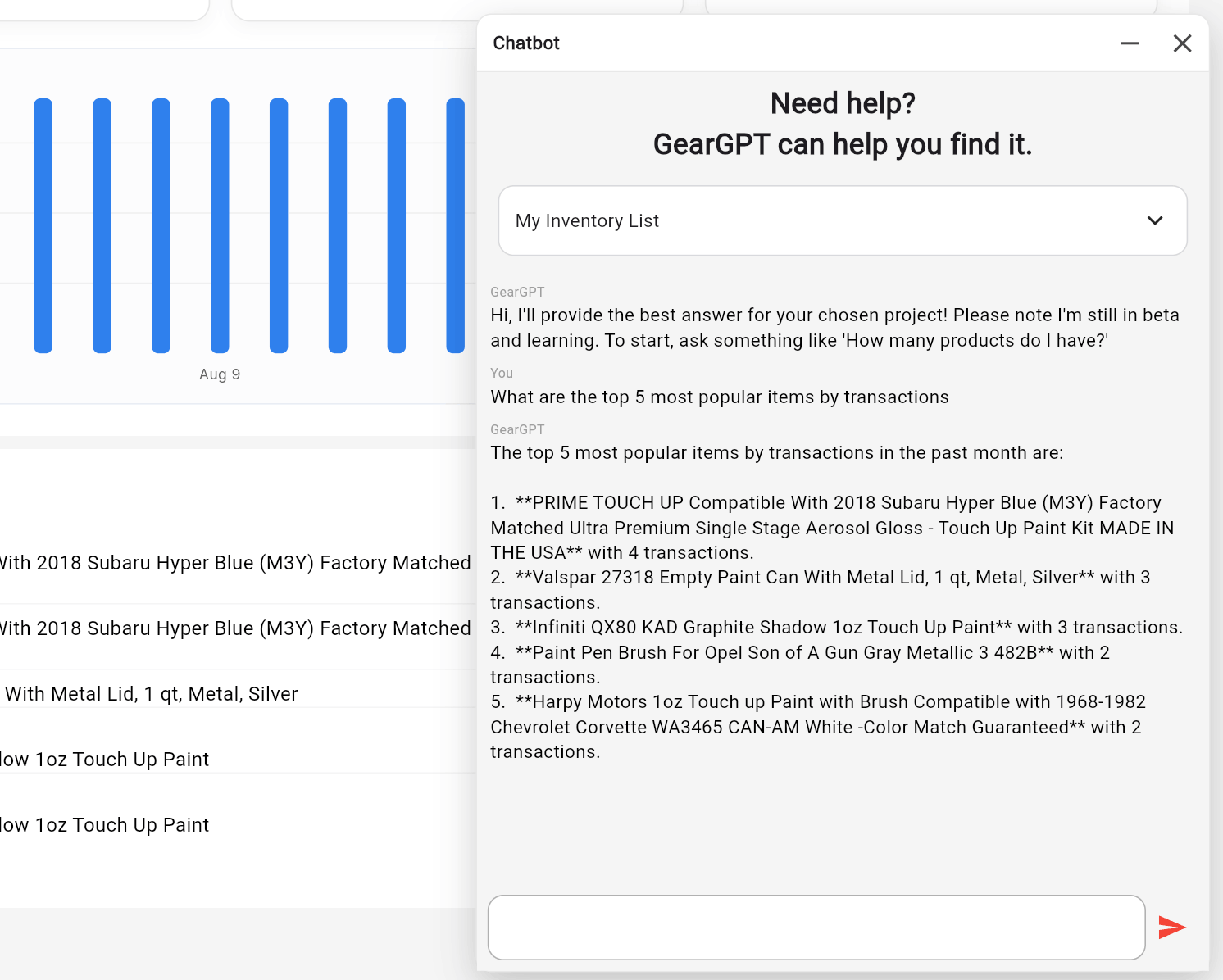
GearGPT identifies and ranks the top five products based on recorded transaction activity.
This provides another way to understand your inventory.
A product may not have the highest stock or the highest dollar value, but frequent transactions can indicate that it is actively moving through your operation.
This can help identify:
Frequently handled products
High-activity inventory
Fast-moving items
Products that may require closer replenishment planning
Products with relatively little activity
You can also ask:
“Which products had the most transactions last month?”
“What are my most active inventory items?”
“Which products moved the most this month?”
“Which items have had very little activity?”
Use Case 4: Identify Low-Stock Products
Ask:
“Which products are low in stock?”
GearGPT can help surface products with lower stock quantities so your team can focus on inventory that may require attention.
Instead of reviewing hundreds or thousands of records manually, you can start with the products that matter most.
You can also ask:
“Show me products with stock below 10.”
“Which items are running low?”
“What products should I review for restocking?”
This can help purchasing and warehouse teams make faster replenishment decisions.
Use Case 5: Find Products With the Highest Stock
Ask:
“Which product has the highest stock?”
GearGPT can compare inventory quantities and identify products with the largest stock positions.
This can help you spot inventory that may be:
Overstocked
Taking up significant warehouse space
Accumulating faster than expected
Worth reviewing before additional purchasing
You can also ask:
“Show me the top 10 products by stock quantity.”
Use Case 6: Find Your Most Expensive Inventory
Ask:
“Which product is the most expensive?”
If your GearChain form includes price information, GearGPT can analyze that data and identify your highest-priced inventory.
This can be useful for:
Asset control
High-value inventory monitoring
Purchasing
Inventory audits
Insurance reviews
You can also ask:
“Show me my 10 most expensive products.”
This is different from total inventory value.
For example, one item may have a very high unit price but only two units in stock. Another lower-priced product may represent much more total inventory value because you have hundreds of units.
GearGPT lets you examine both perspectives.
Why Visual Inventory Answers Matter
One of the biggest improvements to GearGPT is not simply the number of questions it can answer.
It is how those answers can be presented.
Depending on your question and available inventory data, GearGPT can return:
Text explanations
Tables
Charts
Graphs
Ranked results
Historical trends
Different questions are easier to understand in different formats.
The goal is not to generate more reports.
The goal is to help you move from inventory data to useful insight faster.
Instead of exporting data, writing formulas, creating pivot tables, and manually building charts, you can start by asking a question.
Ask GearGPT in Your Own Language
Not every warehouse, store, supplier, or employee works in the same language.
GearGPT supports multiple languages, allowing users to ask inventory questions in the language they are most comfortable using.
You can ask about:
Stock
Inventory value
Transactions
Historical trends
Product activity
Inventory movement
in your preferred language.
This can make inventory analysis more accessible for businesses operating across multiple locations, regions, and countries.
Your employees do not have to translate every question into English before interacting with GearGPT.
They can simply ask.
Use GearChain With Google Sheets and Gemini
GearChain also supports businesses that want to continue working with spreadsheets.
With real-time Google Sheets synchronization, your GearChain inventory data can stay connected with Google Sheets.
This gives you additional options for working with your inventory through tools available in the Google ecosystem, including Gemini.
For example:
Barcode scan in GearChain → Inventory updated → Google Sheets synchronized → Continue working with spreadsheet and AI tools
This gives businesses flexibility.
You can use GearGPT directly inside GearChain for inventory-focused analysis while continuing to use Google Sheets for reporting, collaboration, spreadsheet analysis, or other AI workflows.
Real-Time Excel for the Web Sync(Beta)
GearChain also offers real-time synchronization with Excel for the web in beta.
For organizations using Microsoft Excel as part of their inventory or operational workflow, this provides another way to connect GearChain with tools employees already use.
You can also use available AI agent capabilities within the Microsoft ecosystem while GearChain continues to handle inventory tracking and inventory activity.
This means businesses do not necessarily have to choose between an inventory management system and the spreadsheets their teams already use.
GearChain can serve as the operational inventory layer while keeping spreadsheet data connected.
AI Designed Specifically for Inventory Analysis
GearGPT is not intended to be a general-purpose chatbot.
It is designed specifically to help users understand and analyze inventory information.
Instead of asking a general AI assistant to make sense of an unfamiliar spreadsheet, GearGPT works with the inventory data and activity being managed through GearChain.
That allows users to ask operational questions directly from the environment where their inventory is already being managed.
Less Spreadsheet Analysis. Faster Inventory Answers.
Traditional inventory analysis can involve several manual steps.
You may need to:
Export your inventory.
Open the spreadsheet.
Clean the data.
Add formulas.
Filter and sort records.
Build pivot tables.
Create charts.
Interpret the results.
With GearGPT, many inventory questions can start much more simply:
Ask the question.
Then review the answer as text, a table, a graph, a chart, or a combination of formats.
For retailers, warehouses, manufacturers, construction companies, and other organizations managing physical inventory, this can reduce the amount of time spent manually preparing inventory analysis.
From Barcode Scan to Business Insight
GearChain connects everyday inventory activity with AI-powered inventory analysis.
The workflow is straightforward:
Create your custom form → Import your inventory → Scan and update items → Build activity history → Ask GearGPT → Get visual insights
Every barcode scan and inventory update can contribute to a more complete picture of what is happening across your inventory.
Instead of maintaining inventory records simply because you need to know what you have, you can use that same data to ask better operational questions.
With the upgraded GearGPT, your inventory system does more than tell you what you have.
Now you can ask your inventory questions and see the answers.
Your Data Stays Yours
Your inventory data belongs to you.
We do not train GearGPT or our AI models using your inventory data.
Your data is handled in accordance with our Privacy Policy, Terms of Service, and security practices. GearGPT is designed to analyze your inventory information for your use, not to use your business data to train our AI models.
This means you can use GearGPT to gain insights from your inventory while keeping ownership of your business data.
Help Us Improve GearGPT
We are constantly working to improve GearGPT and make AI-powered inventory analysis more useful, accurate, and easier to use.
Because every business manages inventory differently, your feedback matters.
If there is an inventory question you would like GearGPT to answer, a visualization you would like to see, or another improvement that could make GearGPT more useful for your workflow, let us know.
[Share your feedback →](LINK URL HERE)
Your input helps us prioritize improvements and build GearGPT around real-world inventory use cases.
Frequently Asked Questions
What is GearGPT?
GearGPT is GearChain's AI assistant designed specifically for inventory analysis. Users can ask questions about their inventory data and receive answers through text, tables, charts, graphs, and other visual formats.
What inventory questions can I ask GearGPT?
You can ask about inventory value, stock levels, product activity, transaction history, inventory movement, and historical stock trends.
For example:
“What is my total inventory value?”
“Which products are low in stock?”
“What are the top 5 products by transactions?”
“Show me the total stock trend over the past 30 days.”
Can GearGPT create charts and graphs?
Yes. Depending on your question and available inventory data, GearGPT can present answers using tables, charts, graphs, trends, ranked results, and text explanations.
Can I ask GearGPT questions in languages other than English?
Yes. GearGPT supports multiple languages, allowing users to ask inventory questions in their preferred language.
Can I use my existing Excel or Google Sheets inventory data?
Yes. You can import existing inventory master data into GearChain. GearChain also supports real-time Google Sheets synchronization and real-time Excel for the web synchronization in beta.
Does GearChain use my inventory data to train its AI?
No. GearChain does not use your inventory data to train GearGPT or our AI models. Your data belongs to you and is handled according to GearChain's Privacy Policy, Terms of Service, and security practices.
Do I need coding skills to set up GearChain?
No. GearChain provides a no-code form builder that lets you create a custom inventory system using fields such as barcode, stock, price, location, category, expiration date, and other information specific to your business.