Work Order Inventory Management and BOM Tracking with GearChain
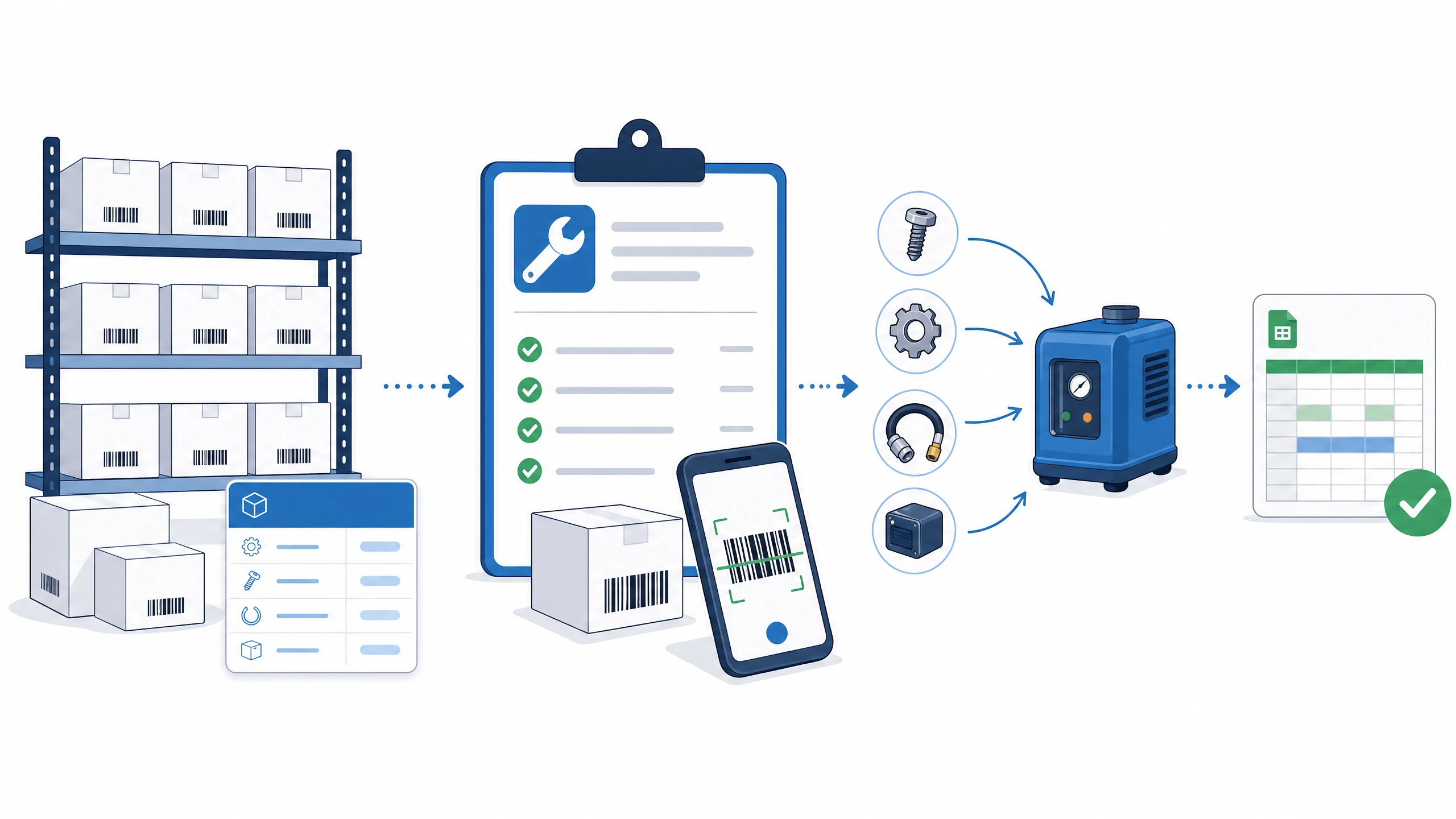
Inventory management does not stop at knowing what you have in stock. Businesses also need to know where an asset is being used, which job it belongs to, and which components went into a finished product.
GearChain can extend your inventory workflow into work order inventory management and Bill of Materials (BOM) component tracking using forms, asset transfers, barcode scanning, and Google Sheets synchronization.
The concept is straightforward:
Master Inventory → Create a Job or Product Form → Transfer Assets → Track Activity
Instead of creating a completely separate system for every job, project, or product assembly, you can use GearChain forms as operational containers for the assets associated with them.
Work Order Inventory Management with GearChain
Imagine that your company maintains a master GearChain form called My Inventory List. It contains the tools, equipment, parts, and materials available to your team.
A new job comes in with the work order number WO123-11.
Rather than creating a new work order inventory structure from scratch, you can duplicate your existing form structure and start assigning assets to the job.
Step 1: Duplicate Your Inventory Form
Go to Forms, locate My Inventory List, open the action menu, and select Duplicate.

- Duplicate the existing My Inventory List form -
Duplicating the form gives you the same field structure you already use for inventory management. You can rename the new form using the work order number:
WO123-11
This provides a dedicated form for the job while keeping your data structure consistent across your inventory and work orders.
Step 2: Create the Work Order Form
The newly created WO123-11 form now acts as the inventory workspace for that particular work order.

- WO123-11 created using the existing form structure -
Instead of mixing job-specific equipment and materials with your entire inventory, you can associate the relevant assets directly with this work order.
This makes it easier to answer a simple operational question:
What inventory is currently assigned to WO123-11?
Step 3: Transfer Assets from Inventory to the Work Order
Next, go to:
Transfer → Send
Choose My Inventory List as the source and WO123-11 as the destination.

- Building the transfer list for WO123-11 -
From the GearChain web application, you can search for products by information such as the product name or barcode number. Enter the required quantity and add each item to the transfer list.
Once everything required for the job has been added, click Send.
The workflow becomes:
My Inventory List → WO123-11
This allows the assets used by the job to be separated from the available inventory while maintaining a record of their movement.
Use Barcode Scanning for Faster Asset Transfers
The same workflow can be performed from the GearChain mobile app through Asset Transfer.
Instead of manually searching for each product, a worker can scan an item's barcode, enter the quantity, add it to the transfer list, and continue scanning the remaining items.
This can be especially useful when preparing tools and materials in a warehouse, stockroom, maintenance facility, or job site.
Barcode scanning connects the physical asset directly with the digital work order workflow.
Step 4: Receive and Confirm the Transfer
The receiving user can then go to:
Transfer → Receive
The user reviews the incoming transfer, verifies the quantities, and clicks Accept.

- Confirming quantities and accepting the work order assets -
Once accepted, the assets are assigned to the WO123-11 work order form.
This creates a clear handoff:
Inventory → Send → Verify → Accept → Work Order
The receiving step is particularly useful because it provides an opportunity to confirm that the quantity received matches the quantity sent.
Step 5: See the Assets Associated with the Work Order
Open WO123-11, and you can now see the assets associated with that job.

- Assets assigned to the WO123-11 work order -
As the job progresses, users can continue updating those assets.
For example, an employee can scan an item from the mobile app to update its information or manually make changes through the Add/Update Product function on the web.
This means the work order form is not just a static list. It can remain connected to the inventory activity taking place during the job.
Step 6: Track Inventory Activity in Google Sheets
GearChain can synchronize inventory data with Google Sheets, giving teams another way to review inventory records and activity.

- GearChain inventory and activity synchronized with Google Sheets -
When parts or equipment are transferred from My Inventory List to the work order, the corresponding inventory changes can be reflected in the synchronized data.
This provides a practical combination:
Barcode-based inventory operations in GearChain + familiar inventory data in Google Sheets.
What Happens When the Work Order Is Complete?
Once the job is finished, reusable assets can be transferred from WO123-11 back to the master inventory.
For example:
My Inventory List → WO123-11 → My Inventory List
A drill, testing device, ladder, or other reusable tool can therefore be temporarily assigned to a job and returned to available inventory when the work is complete.
Materials that were consumed during the job can remain accounted for according to the company's inventory process.
This makes GearChain useful not only for knowing what you own, but also for understanding which job is using it.
Using GearChain for Bill of Materials and Component Tracking
The same forms-and-transfers concept can also be applied to product assembly and Bill of Materials tracking.
Suppose a manufacturer produces faucets.
The company maintains a master parts inventory containing faucet bodies, cartridges, handles, aerators, hoses, connectors, screws, and other components.
Now the company is assembling a particular unit:
Faucet #11
A GearChain form can be created for Faucet #11 using the same form structure. The components actually used in the assembly can then be transferred from the master parts inventory into the Faucet #11 form.
The workflow becomes:
Master Parts Inventory → Faucet #11
Once the transfer is complete, the Faucet #11 form provides a record of the components associated with that finished product.
For example, Faucet #11 could be associated with a specific faucet body, cartridge, handle, aerator, hoses, and mounting components.
From a BOM to Actual Component Traceability
There is an important distinction between a traditional BOM and this GearChain workflow.
A traditional Bill of Materials usually defines the planned recipe for manufacturing a product: which components are required and how many of each should be used.
GearChain can complement that process by helping track the actual inventory components allocated or associated with a particular assembly.
That creates a relationship between:
Parts Inventory → Components → Assembly → Finished Product
When individual components have barcodes or unique identifiers, the workflow can provide more granular traceability between physical parts and the product in which they are used.
For manufacturers, assemblers, maintenance teams, and custom fabricators, that can help answer another important question:
Which components are associated with this specific product?
One Inventory System, Multiple Operational Workflows
The key idea is that a GearChain form does not have to represent only a general inventory list.
A form can represent a warehouse, work order, job, project, product assembly, or individual finished product.
Asset transfers then connect those forms as inventory moves through the real-world operation.
For work orders:
Master Inventory → Work Order → Master Inventory
For product assembly:
Master Parts Inventory → Product Assembly → Finished Product
This gives businesses a flexible way to organize inventory around how assets are actually being used.
Turn Inventory Data into an Operational Workflow
GearChain combines customizable forms, form duplication, asset transfers, barcode scanning, inventory updates, and Google Sheets synchronization to help businesses connect physical inventory with their jobs and products.
For work orders, this means understanding which tools, parts, and equipment are assigned to a particular job.
For BOM and assembly workflows, it means creating a traceable relationship between inventory components and the finished products that use them.
Instead of stopping at “What inventory do we have?”, GearChain helps businesses move toward two more useful questions:
“Where is this inventory being used?”
and
“What job or product is it associated with?”

Enter email to get Free Google Sheets Template
We’ll email you a quick verification link. Click it to confirm your address and your template will open automatically.
Enter email to get Free Excel Template
We’ll email you a quick verification link. Click it to confirm your address and your template will open automatically.